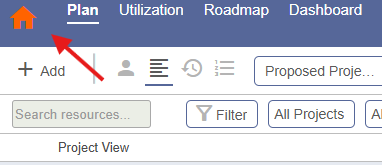
The Kelloo home page lets you keep tabs on information that is important to you, provides shortcuts to your reports and views and provides a quick way to open the planner and filter to the data you want to work with.


Opening the home page


To open the home page select the Kelloo icon.


Choose portals

The home page is organized into portals. Use the home page settings to choose the portals displayed.


My projects

Project information including manager, status, total remaining work, remaining work assigned to resources and remaining work assigned to placeholders (roles). 


Tabs let you view starred projects, projects with remaining work assignments or all projects.


My roles

Summary data for the role including total remaining work, remaining work assigned to resources in the role and remaining work assigned to the role itself (placeholders).


Tabs let you view starred roles, roles with remaining work assignments or all roles.


My views and reports

Shortcut access to reports, roadmaps and views you have starred.


Configure portal layout

Use the portal display options to re-order the portals.


Configure portal columns

Configure which columns are displayed in each portal using configure columns. 


Open the planner from a portal

Select a project or role to open the planner and the planner will filter the data for you.


  • Select a project - the planner will filter to include only the roles, resources and teams assigned work in the project.


  • Select a role - the planner will filter to include only the projects that have work assigned to the role. 


Planner search

Use the planner search to quickly locate items in the planner.
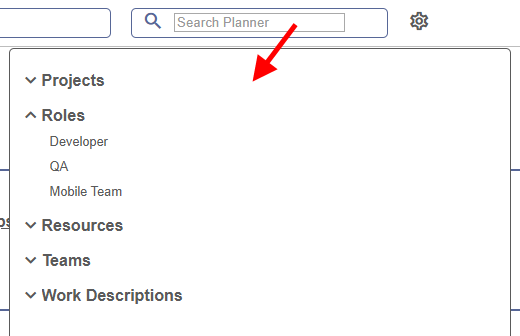


  • Select a project - the planner will filter to include only the roles, resources and teams assigned work in the project.


  • Select a role - the planner will filter to include only work that has the role assigned.


  • Select a resource - the planner will filter to include only work that has the role assigned. 


  • Select a team the planner will filter to include only work that has the team assigned. 


  • Select a work name the planner will filter to include only work that has the work name assigned.